Settings
In this tutorial we will cover the Pet Settings page. After viewing this tutorial you should know all about the existing options to update your pet's settings and how you can use this to maximize your pet's training.
Prerequisites
This tutorial assumes you have an existing pet. For the permissions section, you will need to have another user with an active username.
Overview
The pet settings page contains configurations about your given pet. This is where you would share permissions on a pet, or toggle visibility on certain fields, or even the pet itself!
Permissions
You can set pet permissions to enable other TailScribe users to view or update your pet. In order to do this, you need to have an existing pet, and you need the username of another TailScribe user.
- On the pet permissions page, scroll over to Pending User Permissions for Pet
- Input the user that you would like to share the pet with.
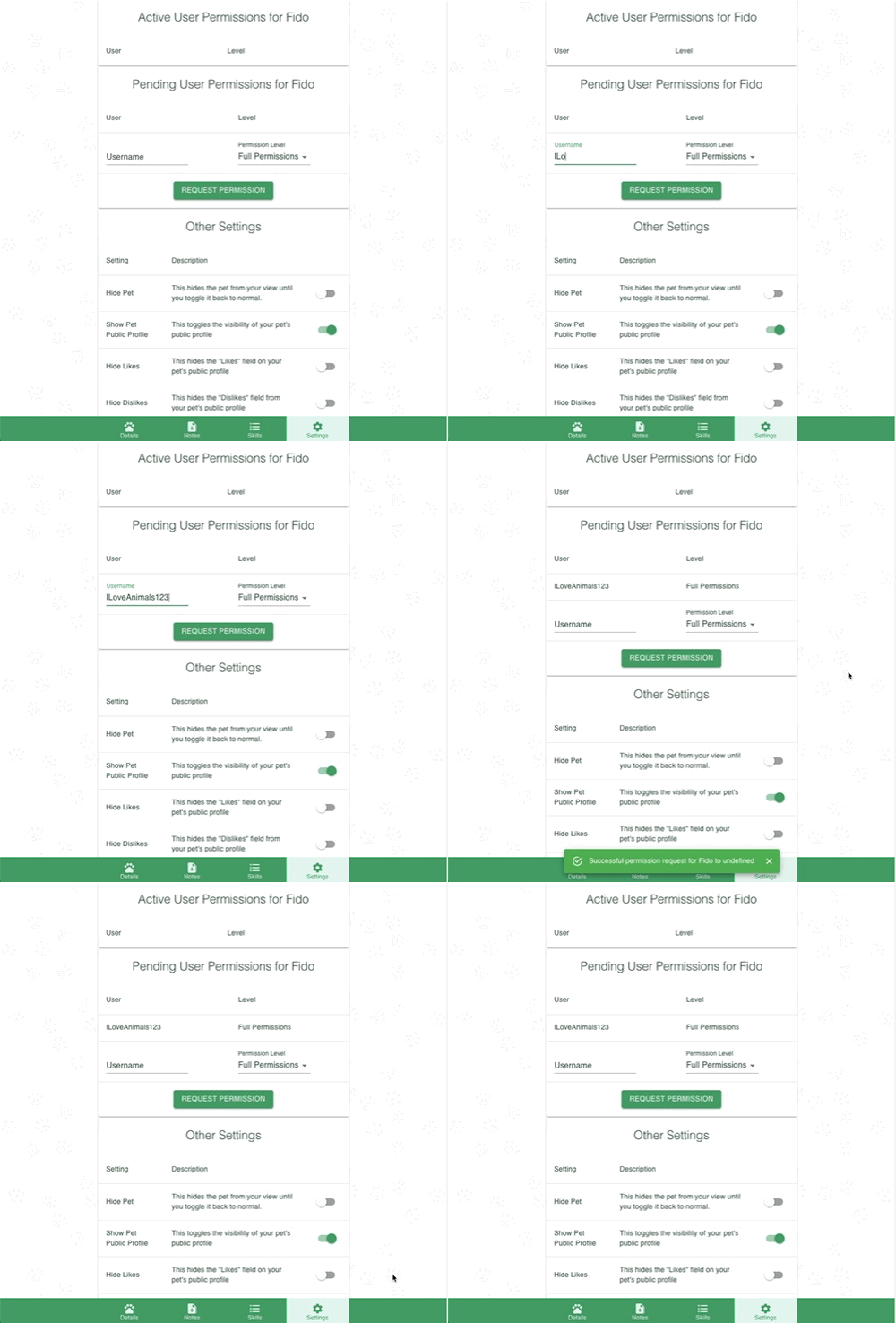
- The other user in their Profile accepts their pending permissions for the pet.
- The permissions will now appear in active permissions, and the other user can now interact with your pet!
Other Settings
These are for other settings related to the pet. All of them can be toggled on or off. In order, we have:
| Option | Description |
|---|---|
| Hide Pet | Hides the pet from the dashboard. |
| Show Pet Public Profile | Hides the pet's public profile. |
| Hide likes | Hides likes from public profile view. |
| Hide Dislikes | Hides dislikes from public profile view |
| Hide Skills | Hides skills from public profile view |
| Hide Goals | Hides goals from public profile view |
| Hide Titles | Hides titles from public profile view |
And that wraps up the Pet Settings page!
What's next?
Next we can move into more targeted account settings, starting with the user Profile!