Skills
In this tutorial we will cover the skills page. After this tutorial you should understand the skills page and how to use it to record information regarding your pet's skills.
Prerequisites
To access this page, it is required that you have a pet with which to add skill details. To make use of it, it is also required that you add skills to your pet's details page.
Overview
The skills page is used to show all of your pet's skills as well as any associated cues.
Upon navigating to the pet skills page you will see all of your pet's skills listed out in alphabetical order. You can filter out skills by using the search bar at the top left.
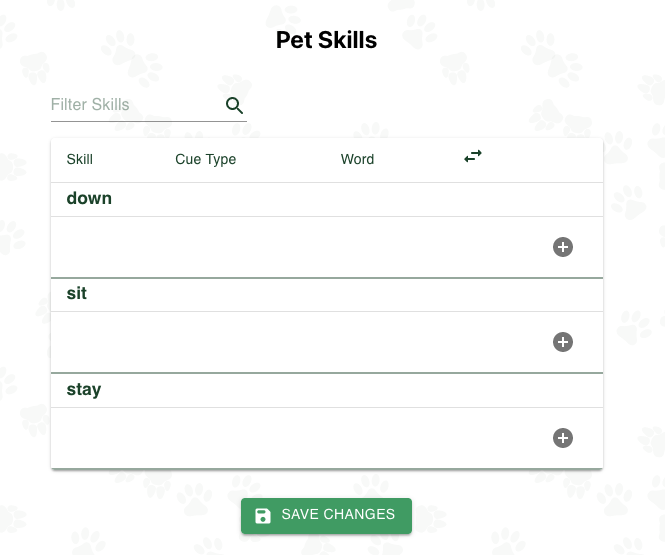
| Field | Description |
|---|---|
| Skill | The Skill name. |
| Cue Type | The type of verbal cue. Current options are "Cue", "Left Cue" and "Right Cue" for the directions of the given cue. |
| Word | The word for the verbal cue. |
| dual arrow icon | Whether or not the cue is symmetric. (it has both a left and a right side. Think "left paw" vs "right paw") |
| + button | Adds a new cue for a given skill. |
| Trash Can Icon | Deletes a cue from a skill. |
Adding Cues
You can add cues to each of your pet's skills. Do this by pressing the "+" icon underneath each skill. You can add the actual written word for the cue, as well as whether or not the cue is symmetric, (i.e it has a left and a right side)
When you are done with your changes, click the "Save Changes" button at the bottom of the screen.
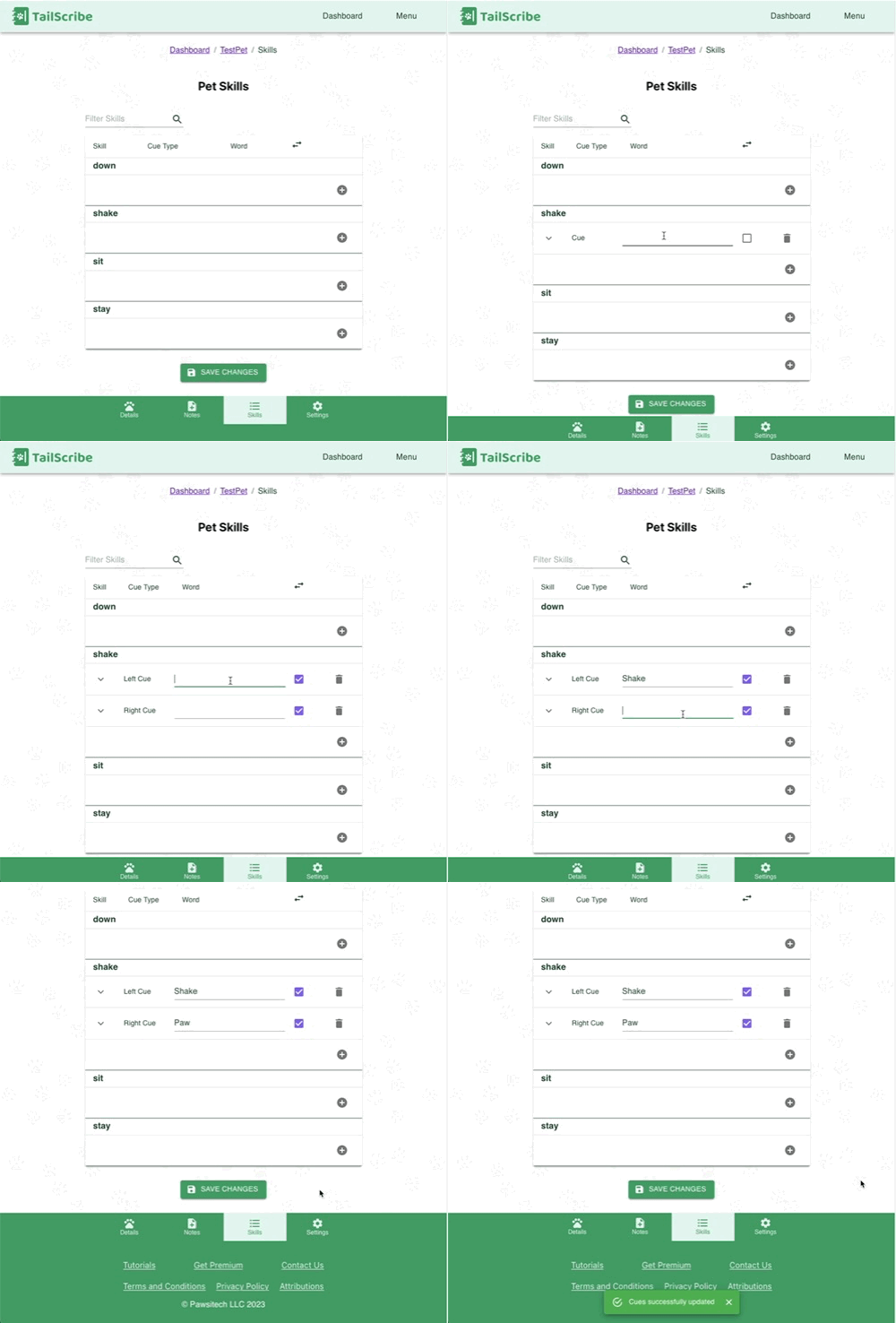
And that's it! You should now know how to use the skills page and add cues.
What's next?
Next, we'll look at the metrics page