Notes
This guide will introduce you to the Notes page. After reading this guide you will understand the options available for notetaking, and when you should try to use them.
Prerequisites
This tutorial assumes you have already created an account and either added a pet or have access to another user's pet with edit permissions.
Overview
The notes page is where you will primarily record anything that happens with regards to training your pet. This is currently supported by notes, videos, and checklists.
Notes
Your most standard notetaking type. These are the most straightforward and the easiest to get started with. You can take a timestamped note and tag it with anything you see fit.
Deep Dive
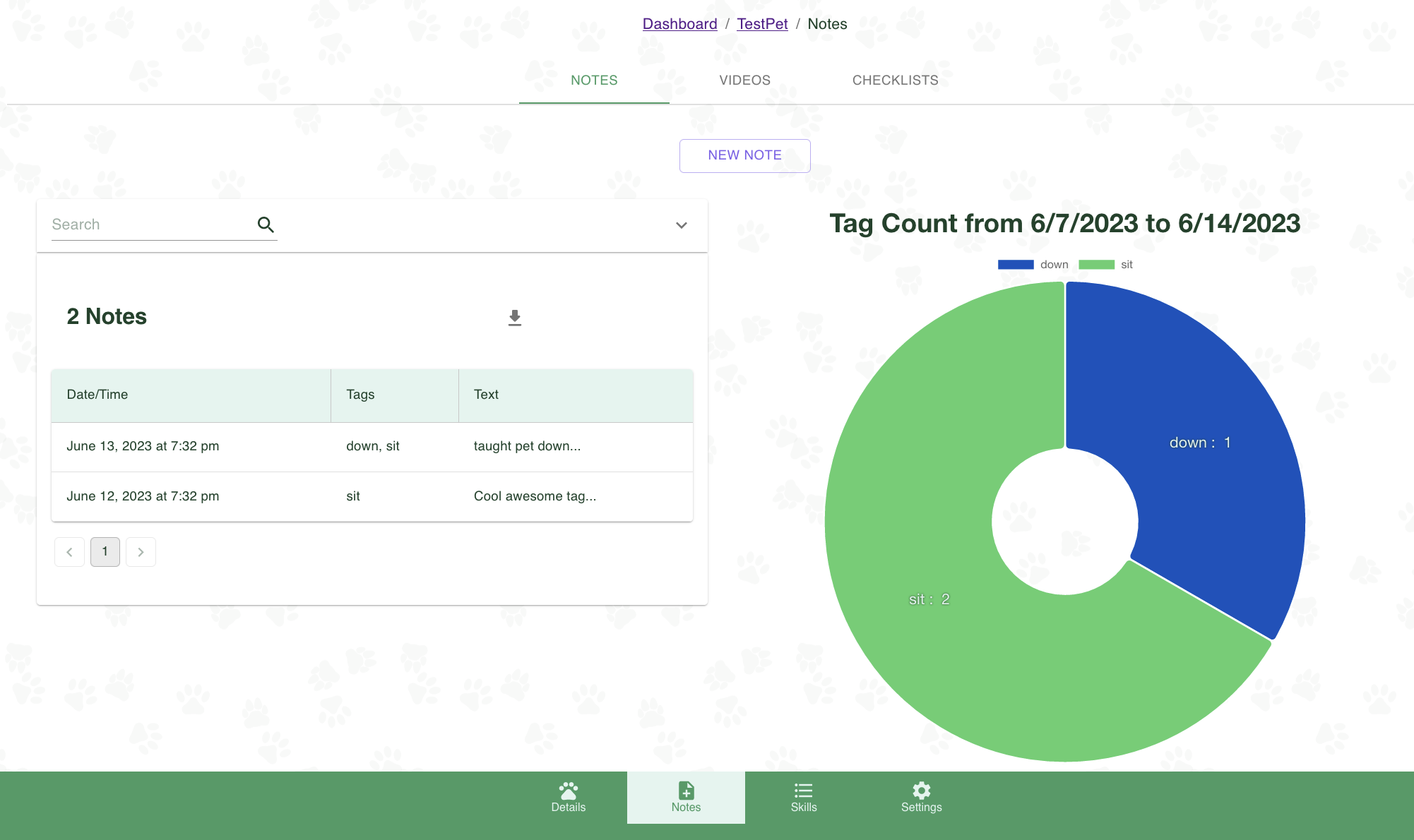
To navigate to the notes page, go to your pet's details page -> "Notes" in the bottom navigation. Here you will see a breadcrumb indicating your current location, a tab indicating which note type you're currently on, a button to create a new note, and the notes table. (On bigger devices you will also see a graph. On smaller devices the graph will be on a separate tab.)
Creating a Note
- To create a note, click the "New Note" button.
- You can enter the date, text regarding the note, and tags about the note. The date, text, and tags can all be used to search for a specific note.
- After you are finished, click "Save New Note" to save your note.
- After saving, you will be redirected to the dashboard.
Viewing and Updating a Note
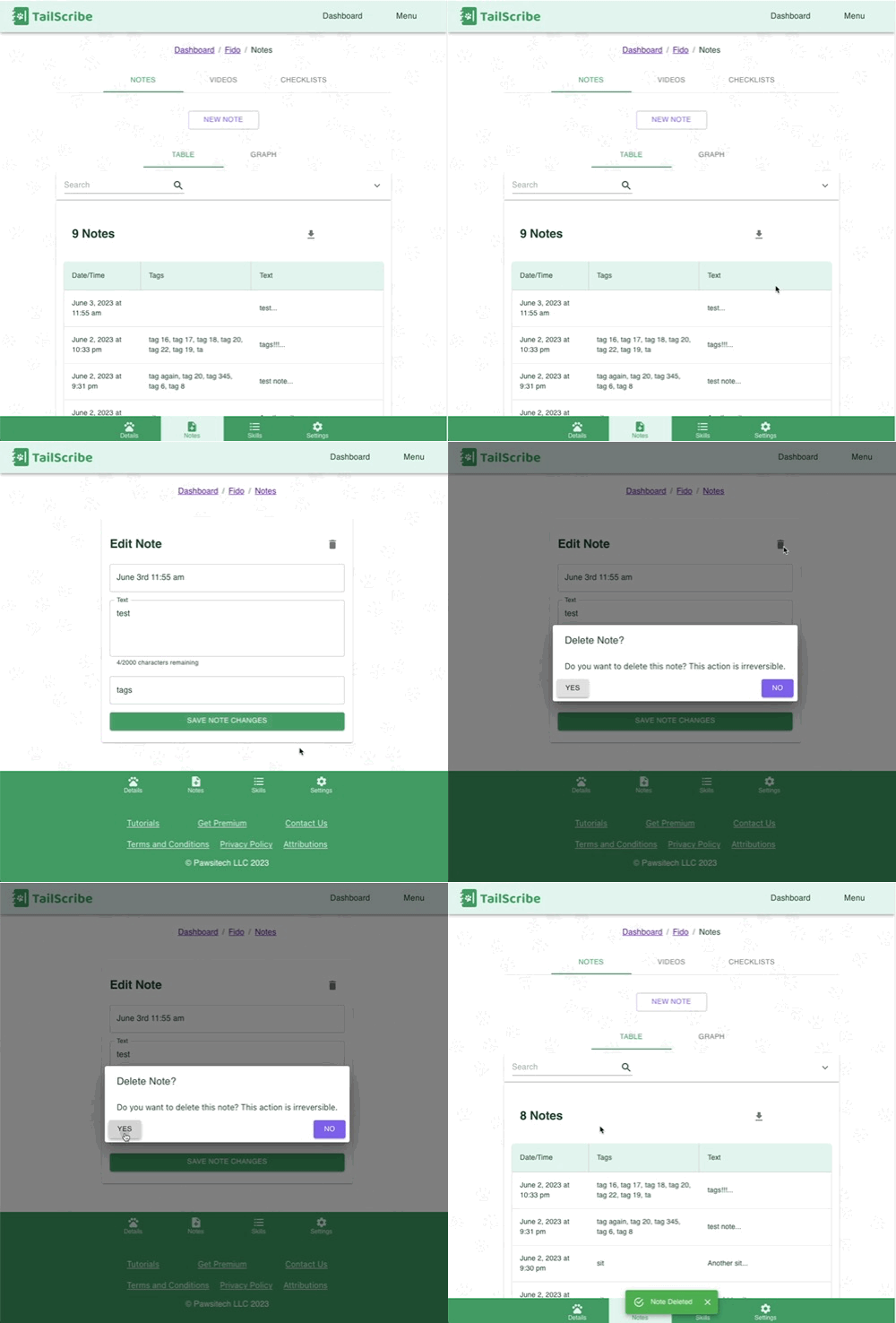
- To Update a note, click on an existing note. You will be sent to a different "Update Note" page.
- Here you can change any details regarding the note.
- After you are done with your changes, you can click the "Save Note Changes" button to update the note.
Deleting a Note
- To Delete a note, you must first go to the "Edit Note" page.
- At the top right of the note there is a small trash can icon. If you click this you will be given a dialog confirming if you want to delete.
- If you click "Yes", the note will be deleted and you will be redirected back to your dashboard.
Searching notes
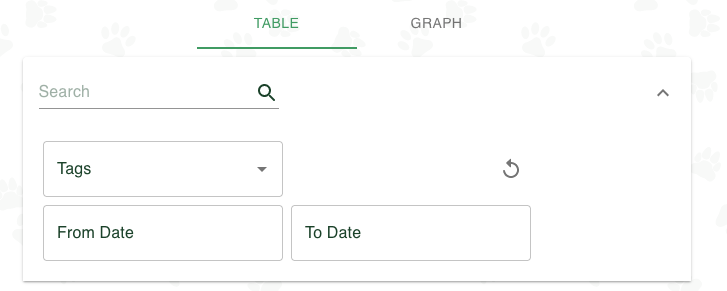
Within your Pet's notes table, you can search and filter out all of your notes. By default if you type within the "Search" bar at the top of the notes, it will search your notes based on the text.
To search by other fields, you can use the dropdown at the far right to open advanced search settings.
Within advanced search, you can search via any number of tags, and with a date range.
If you want to reset your search settings, you can press the reset button to the right of the "Tags" box.
Notes graph
To the right of the table, (within the "graph" tab on smaller devices), you can see a graph that gives an "at a glance" activity map of your tags for the past 7 days. If you wish to hide any of the existing tags from view, you can click the box in the legend to toggle a tag on/off for the graph.
Video Notes
Allow you to make use of video. These potentially can be very involved, but can provide you extremely detailed insight into your training.
Deep Dive
To navigate to the video notes page, you go to your pet's dashboard -> Notes -> Videos Tab. You will receive a very similar view to the notes page.
Creating Video Notes
In order to create a video note, press the "New Video Note" button. You will be sent to the Video Note Creation page.
On this page you will be greeted with a date field, a description field, and a "Tags" field. You will also see a Youtube Video Url field.
| Field | Explanation |
|---|---|
| Date | The most accurate date/time at which the videos were taken. If uncertain, just use your best guess. |
| Description | A short description about the videos. |
| Tags | Tags about the videos. These are to be used for searching only. |
| Youtube Video Url | The link to the youtube video. Only youtube videos are currently supported, and in order to work with the video through TailScribe it must be at least set to unlisted. |
To add a video:
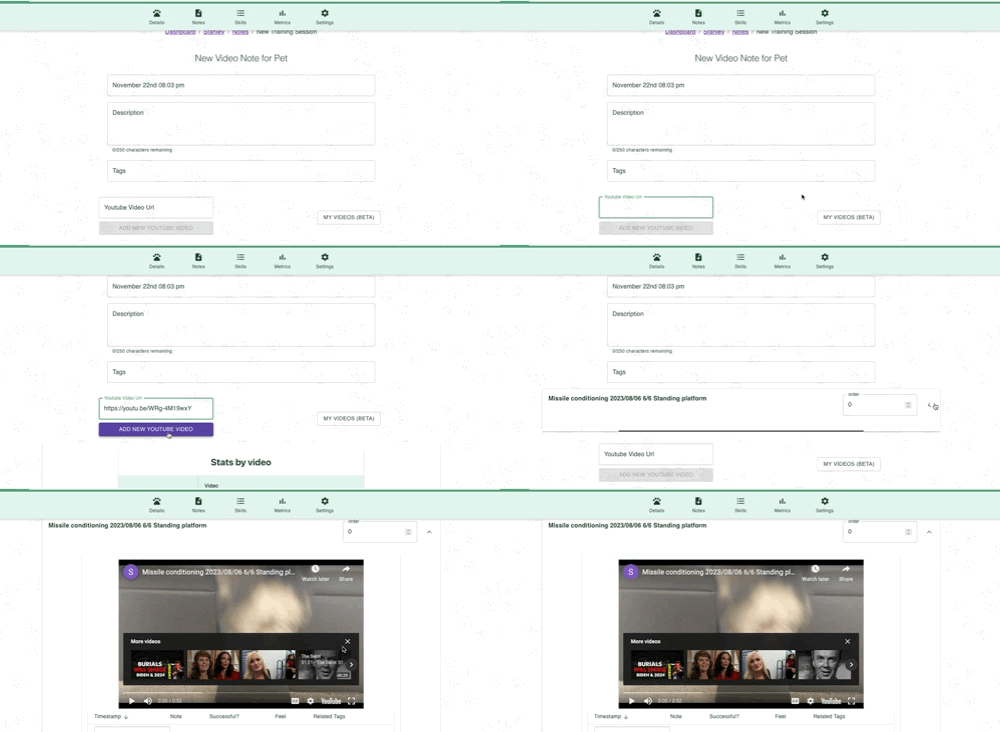
- Copy a link to the video directly into the "YouTube Video Url" box an click "Add New Youtube Video"
- If you have enabled the YouTube integration, Click the "My Videos" button and select your videos. Then click add videos at the bottom to add all of your videos in bulk.
 Pasting a link
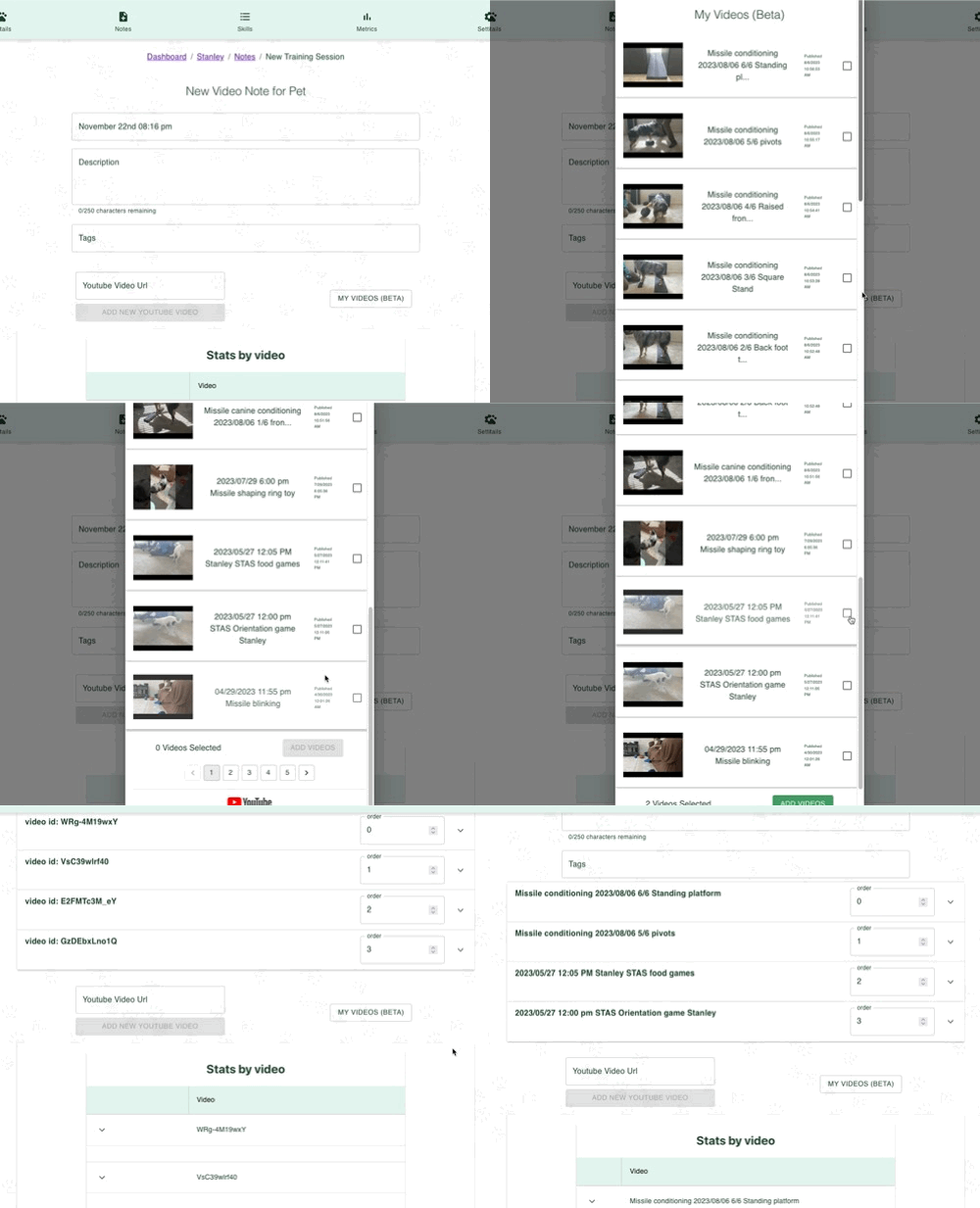 Importing directly from your YouTube account
After adding the video, you will see it show up on your screen within a dropdown. You will see a title which matches the actual video title, and an order.
Order is used when you have multiple videos to give them a correct sort order.
To view the video, click the upside-down caret at the right side of the screen.
Now you will see the video, and the video notes table.
| button | action |
|---|---|
| "Add New Note Row" button | Adds a new row to annotate at the current timestamp of the video |
| Pen Icon Button | Enables editability on all annotations |
| Trash Can Button | Opens a dialog to delete the current video |
To add a new annotation, click "Add New Note Row"
Upon clicking it, it will add a new row at the current timestamp. It has the following options:
| Field | Description |
|---|---|
| Timestamp | The timestamp at which the annotation occurred. When not in edit mode it sets the video to that time. |
| Note | The actual note content. |
| Successful? | Whether or not any action that occurred at the given time was successful. Used in calculating an overall success rate at the end of all videos. (If not applicable, leave blank) |
| Feel | How you felt about what happened at that given moment. (Frown -> Smile) |
| Related Tags | Tags for the given point in time. I.E. If a sit occurred, you can add a "sit" tag. If not applicable, leave blank. |
| Trash can icon | Used to delete the row |
You can add as many videos, and as many annotations to each video, as you see fit.
When you are done adding all of your videos and taking all of your annotations, you will see a Summary of all of your notes. You will see a Stats by video section that breaks down and calculates the tags, success rates, and feels for every single annotation taken in each video.
Below that is a "Total Summary", which does the same thing, but for every video in this video note.
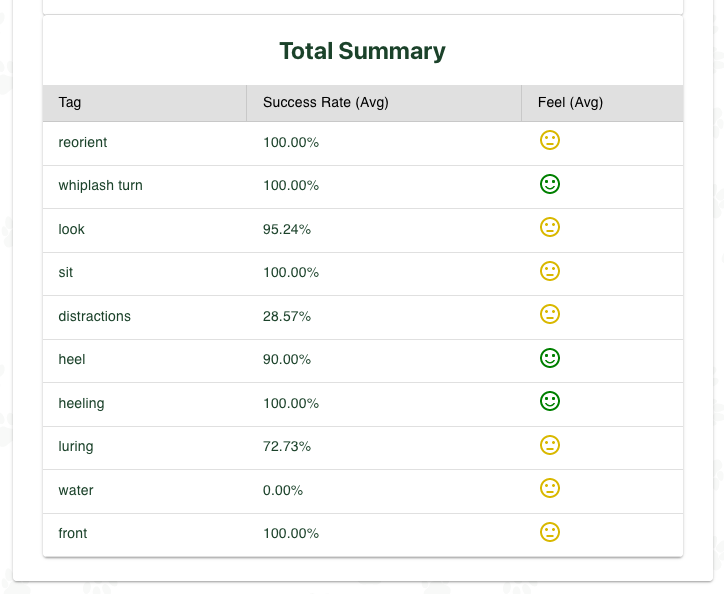
Once you're happy with your note, click the "Save Video Note" button. All of your changes will be saved.
Viewing and Editing video notes
To view or edit a video note, you can click the entry in the video notes table. You will go to the "Edit Video Note" page.
Here you can follow the same instructions in the "Creating Video Notes" section to update your note.
Deleting video notes
If you go in to view a video note, you can see a trash can icon at the top right of the page. Clicking this will allow you to delete the note.
Checklists
Also can be thought of as plans or procedures. They allow you to front-load your effort and prepare a checklist for your pet as you move toward a goal. (Ex: Learning the skills necessary to compete in a sport)
Adding a checklist
Checklists must first be added to your account before adding them to your pet. See the Add a Checklist tutorial.
To add a checklist to a pet, you can navigate to notes -> Checklists tab. Click the "Add Checklist" button.
On the "Add Checklist" page, you will be able to pick out of all your existing checklists to add to your pet. After you've chosen your desired checklist, click the "Add Checklist to Pet" button to confirm your selection and give your pet a copy of the checklist.
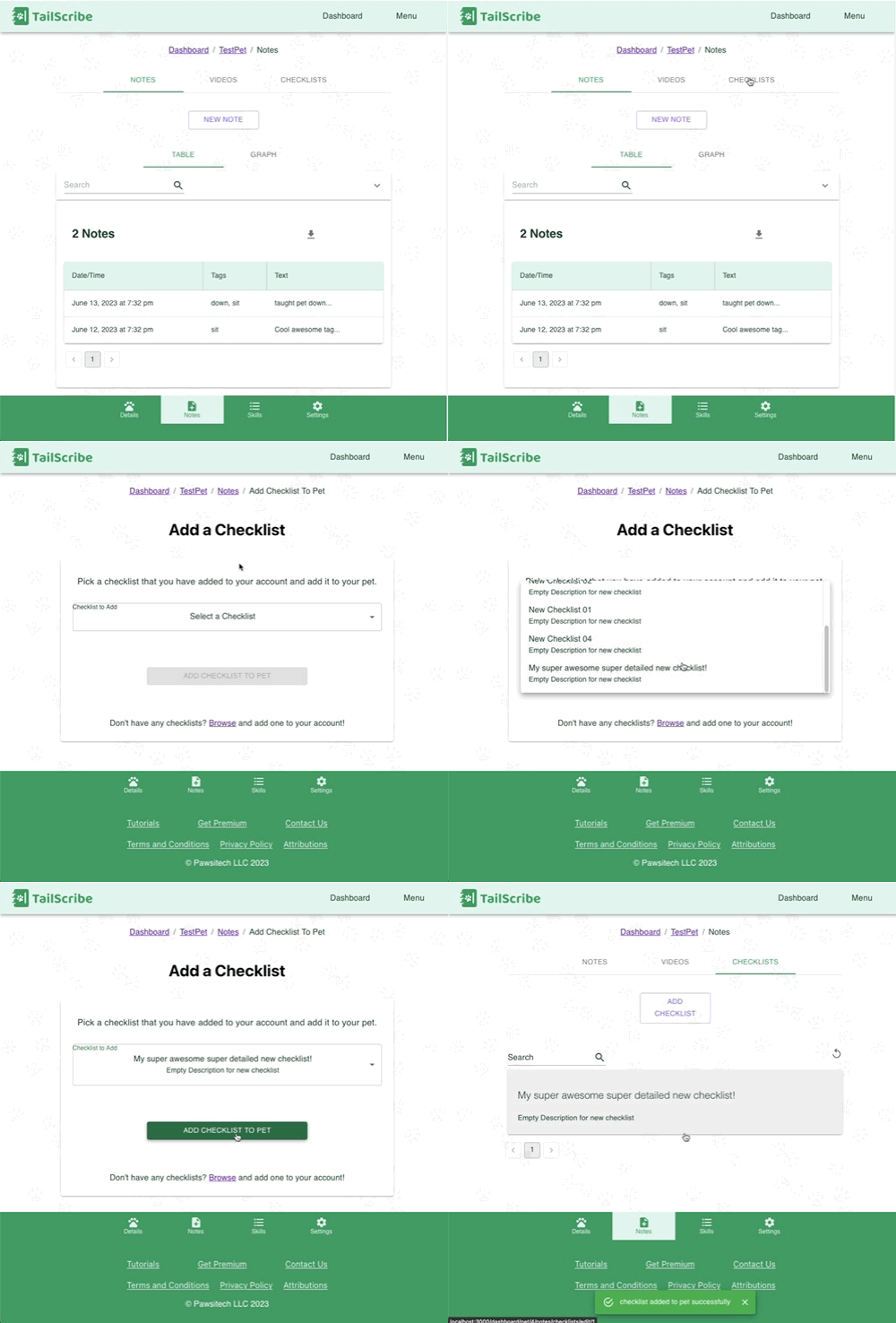
Using a checklist
Now, back at your pet's checklists tab you can see all of their checklists and search through them. Selecting the checklists takes you to the checklist edit page.
Each item you check is automatically saved. All relevant triggers happen automatically on check.
To print your current state of your checklist, you can click the print icon in the top right.
And that's everything! You should now have a solid understanding of the various notetaking methods and how to use them.
What's next?
In the next Tutorial, we will cover the Skills section.